avelisserent

Product Documentation

A step-by-step guide for using avelisserent: create your agency workspace, publish a booking website, manage vehicles, process bookings, and run daily rental operations.

Step 1

Create your agency workspace

Start from the signup page, enter your rental agency name, country, preferred website name, owner details, business email, and password. After registration, choose a subscription plan to activate the dashboard.
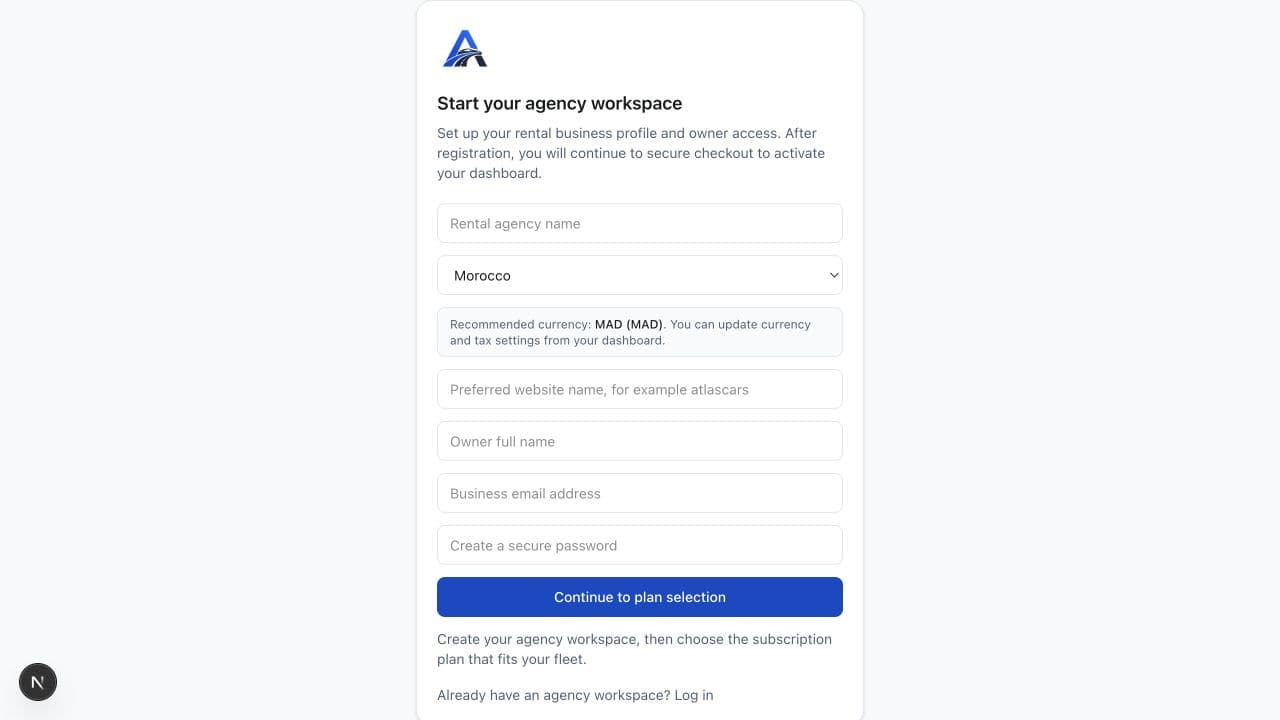
Live signup page for creating an agency workspace

Use a real business email

Choose a short website name for your subdomain

Select the country to set the recommended currency

Activate billing before using protected dashboard tools
Step 2

Configure your company profile

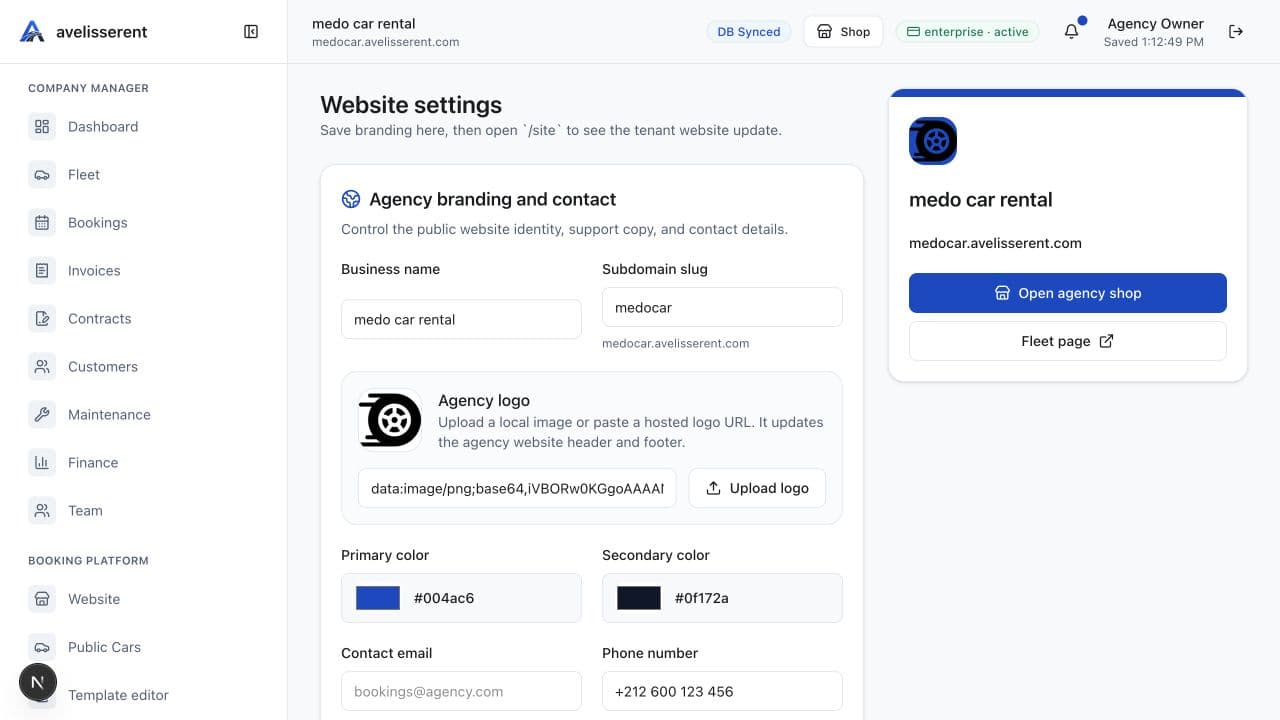
Open the dashboard settings to add your logo, business name, contact information, WhatsApp number, social links, currency, VAT or tax rates, pickup locations, map location, privacy policy, and terms of use.

Live dashboard settings page for configuring agency branding and website details

Upload agency logo and brand colors

Add contact email, phone, WhatsApp, and address

Set pickup locations customers can choose from

Configure currency, VAT, taxes, signature, and stamp

Step 3

Add vehicles to your fleet

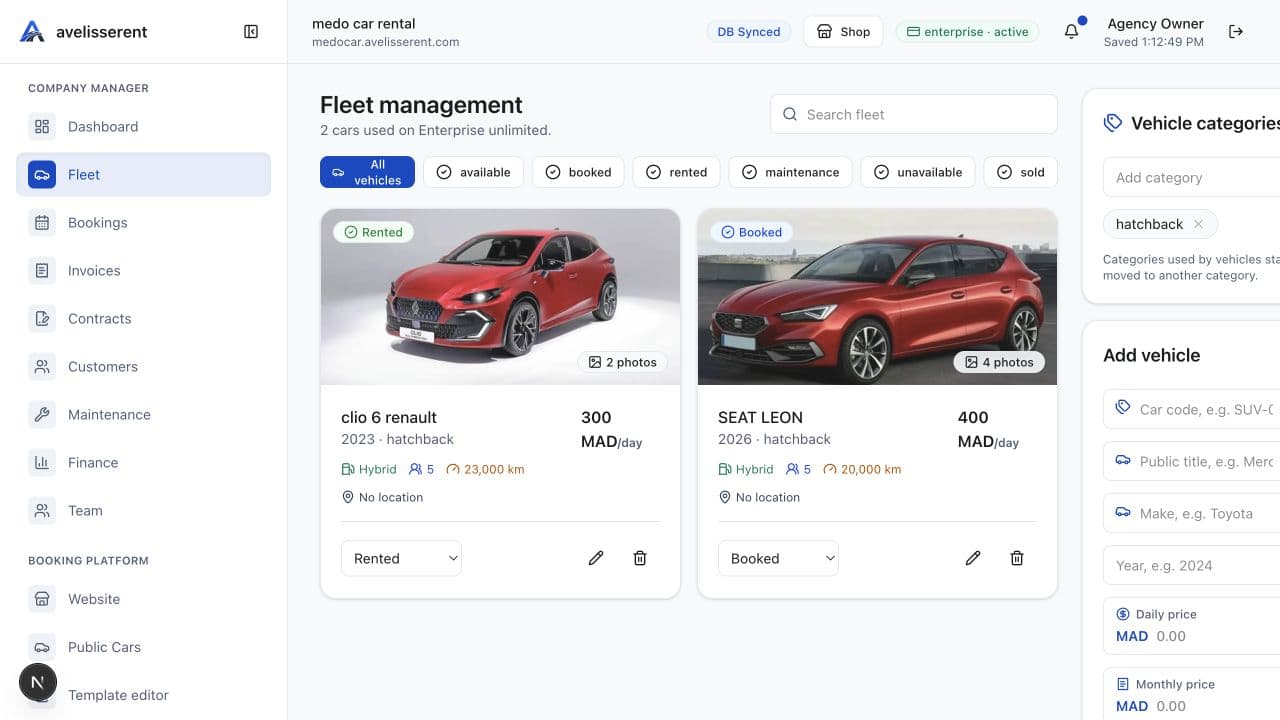
Go to Fleet or Cars, then create vehicle records with make, model, year, category, prices, deposit, insurance price per day, service fee, mileage, seats, transmission, fuel type, status, description, and multiple photos.

Live dashboard fleet management page with vehicle records

Add daily, weekly, monthly, insurance, service, and deposit prices

Upload multiple car images

Use categories such as SUV, hatchback, sedan, van, luxury, or electric

Choose whether the vehicle appears on the public booking website

Step 4

Publish the agency booking website

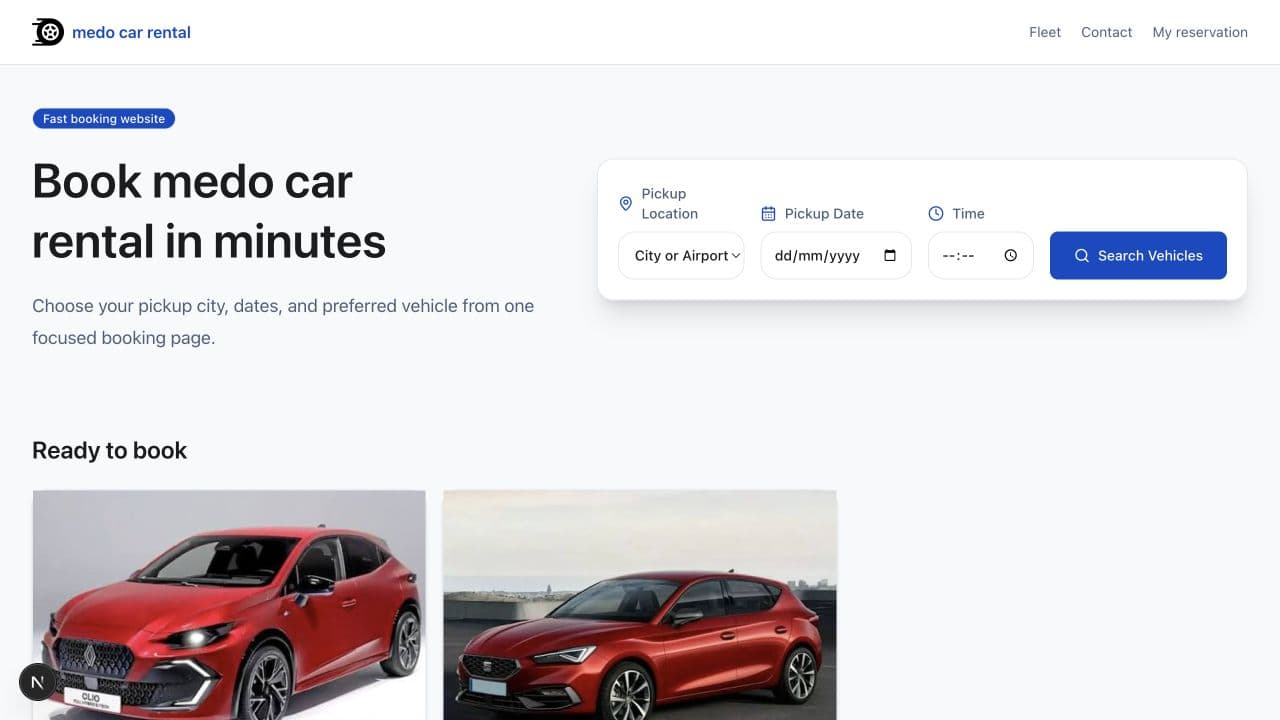
Open the website section to choose a storefront template, customize static text and images, set SEO content, publish public cars, and preview the customer booking website.

Live agency booking website home page

Choose a booking website template

Edit public text, colors, images, and legal pages

Keep powered-by branding protected

Open the agency shop from the dashboard

Step 5

Receive and manage bookings

Customers choose a vehicle, pickup and return dates, locations, contact details, and notes. The system checks availability, prevents overlapping bookings, creates the request, and stores it in the agency dashboard.

Live dashboard booking management page with reservation records

Review pending bookings

Approve, reject, cancel, start, and complete rentals

Track unpaid, paid, refunded, and partially paid payment states

Let customers check booking progress with email and booking number

Step 6

Use the booking calendar

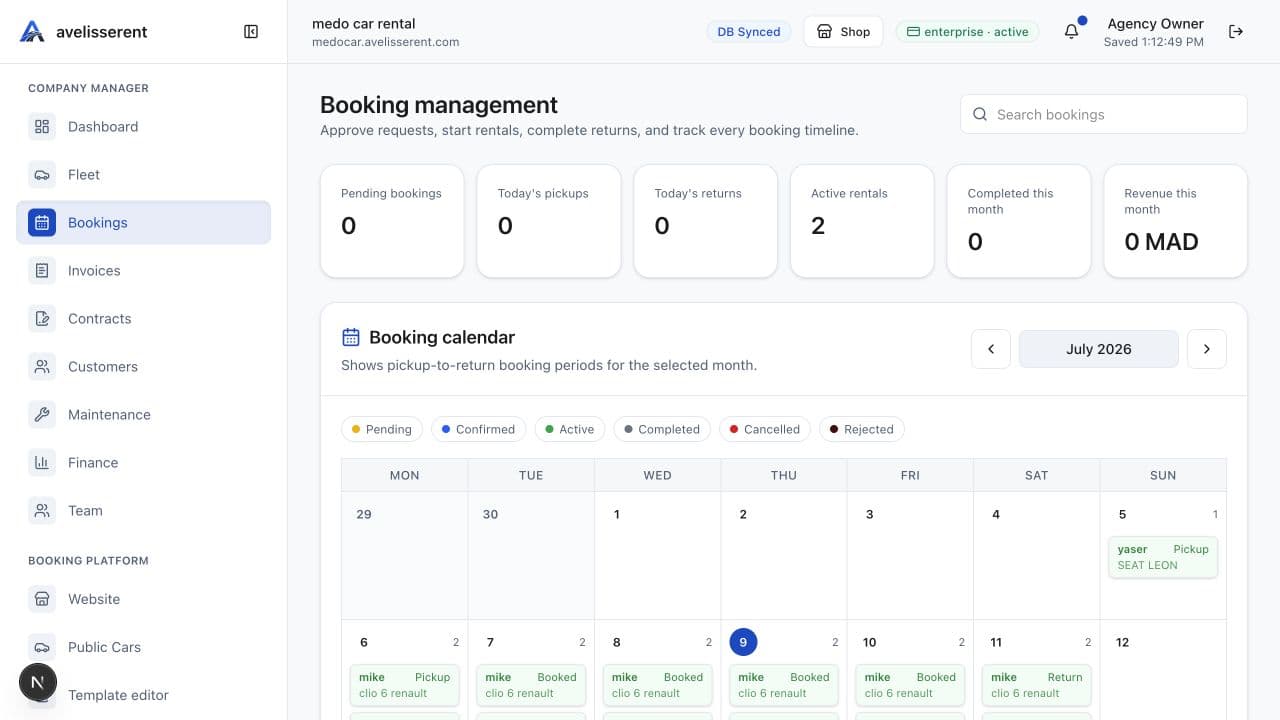
The calendar view helps you see pickup periods, return dates, active rentals, and booking conflicts at a glance. Use it daily to plan vehicle availability and staff workload.

Live dashboard bookings page with calendar and booking status controls

Monthly booking calendar

Upcoming pickups and returns

Booking period visualization

Conflict detection for active reservations

Step 7

Manage customers, invoices, and contracts

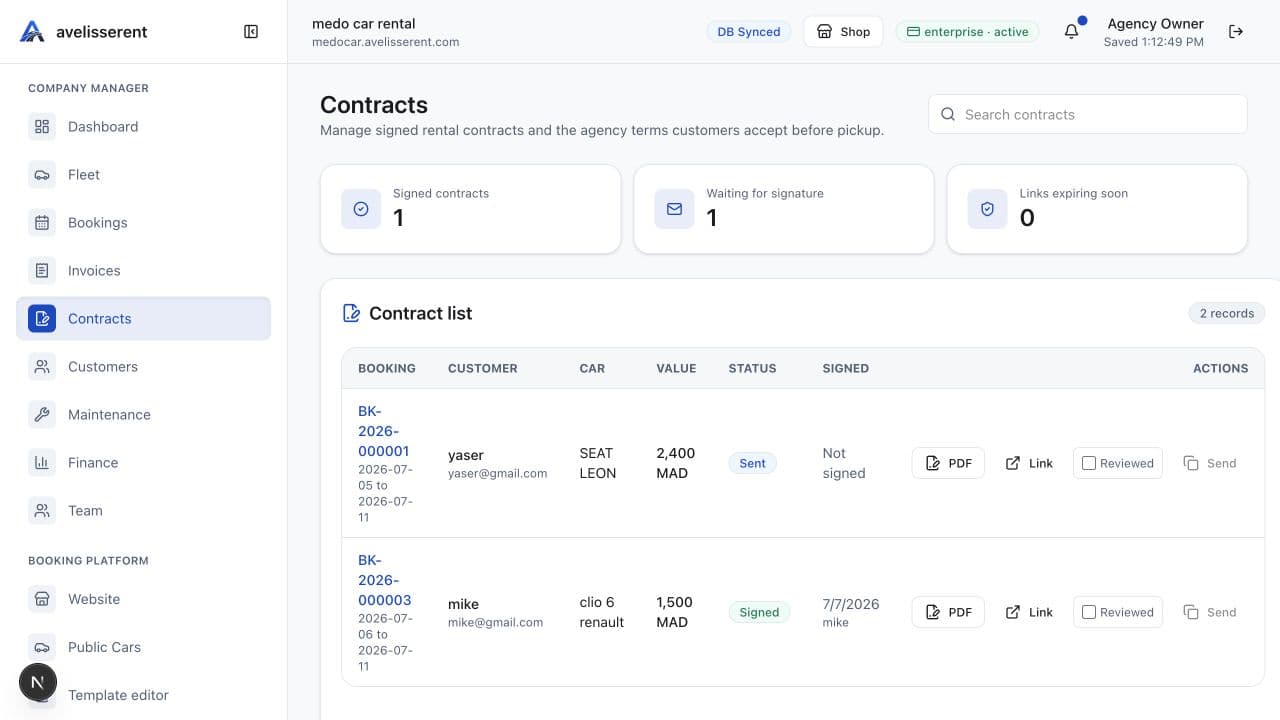
Every confirmed booking can connect to customer records, invoices, payment status, rental agreements, and secure e-sign links. Signed documents stay connected to the booking for later download or printing.

Live dashboard contracts page for rental agreements and signing settings

Customer list with active and completed rentals

Invoice creation, view, print, and payment status update

Contract terms managed from the contract menu

Secure signing URL with acceptance checkbox and e-signature pad

Step 8

Track finance, maintenance, and reports

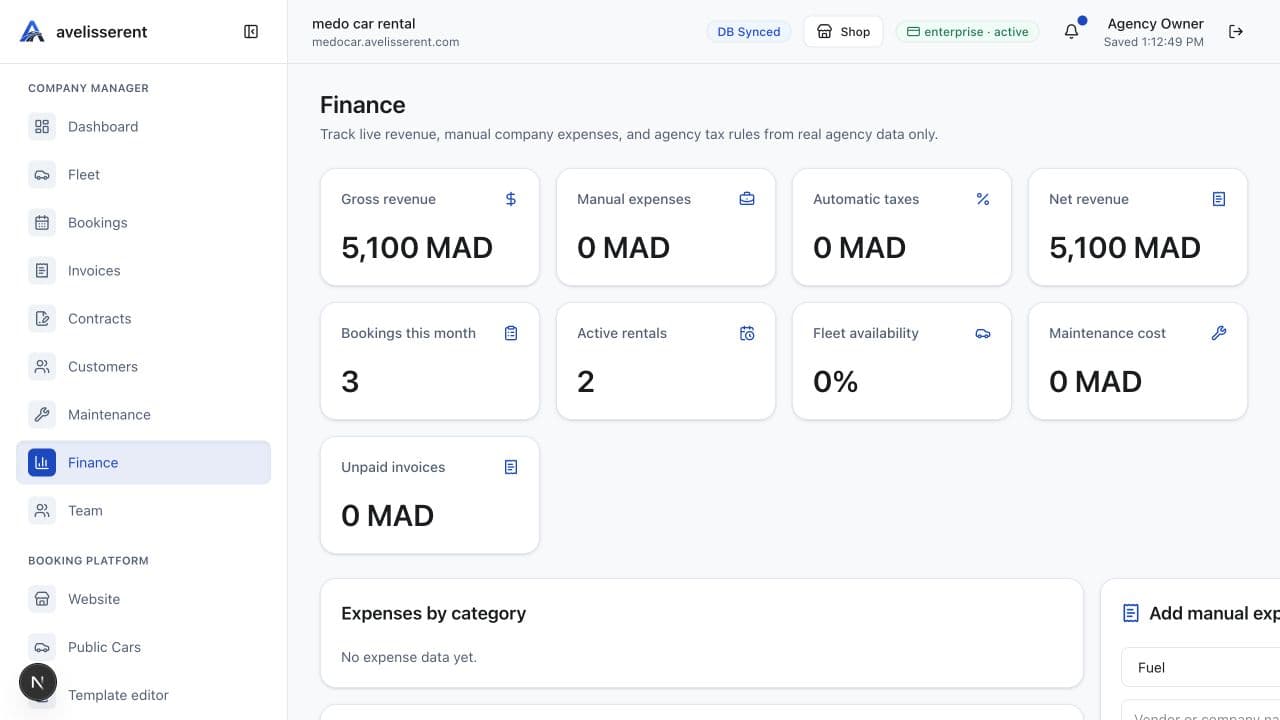
Use the company manager tools to record expenses, upload receipts, define tax rules, monitor maintenance, track revenue, and review operational reports by day, week, month, or all time.

Live dashboard finance and reports page

Manual expenses with receipt image or PDF upload

Tax rules with optional automatic revenue application

Maintenance records and reminders

Revenue, bookings, customers, cars, and activity analytics