Browse Website & Online Booking
Public Cars controls which operational fleet vehicles appear on the public booking website. This screen uses vehicles already created in Fleet.
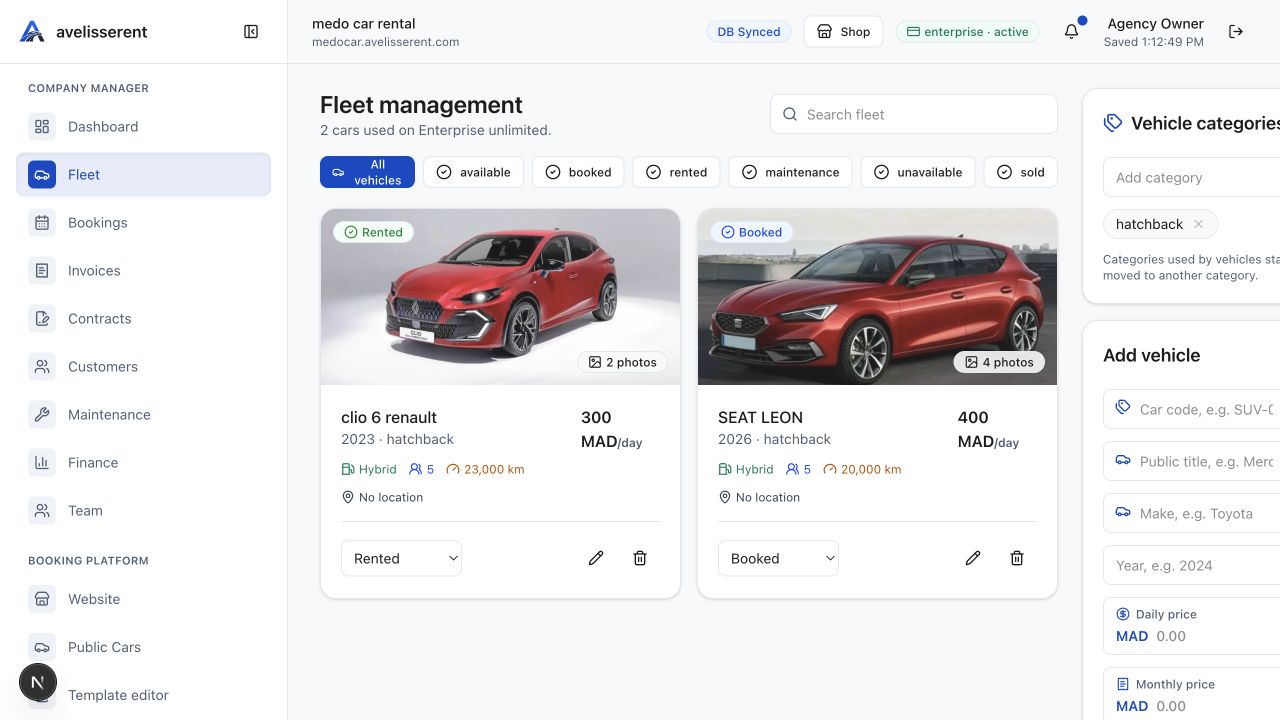
Public car states
- Public: the vehicle can appear on the public booking website.
- Hidden: the vehicle stays in the dashboard but is removed from public website browsing.
- Featured: the vehicle is emphasized in public website sections that show highlighted cars.
Publish or hide a vehicle
- Open Website.
- Select Public Cars.
- Find the vehicle card.
- Use Publish for a hidden car or Hide for a visible car.
- Use Featured when a vehicle should appear in highlighted public sections.
Edit vehicle details
Select Edit car to return to Fleet when a vehicle needs updated photos, price, category, mileage, transmission, fuel type, plate information, or operational status.
Quality checks before publishing
- The vehicle image is clean and represents the actual rental offer.
- Daily price, status, category, mileage, transmission, and fuel details are correct.
- The vehicle is not under maintenance or unavailable for the period customers are likely to request.
- Booking rules and add-ons are configured where needed.
Was this article helpful?
Your feedback helps improve official AvelisseRent documentation.