Browse Getting Started
AvelisseRent needs at least one accurate vehicle record before the agency can present a useful public fleet. Add vehicles from Fleet.
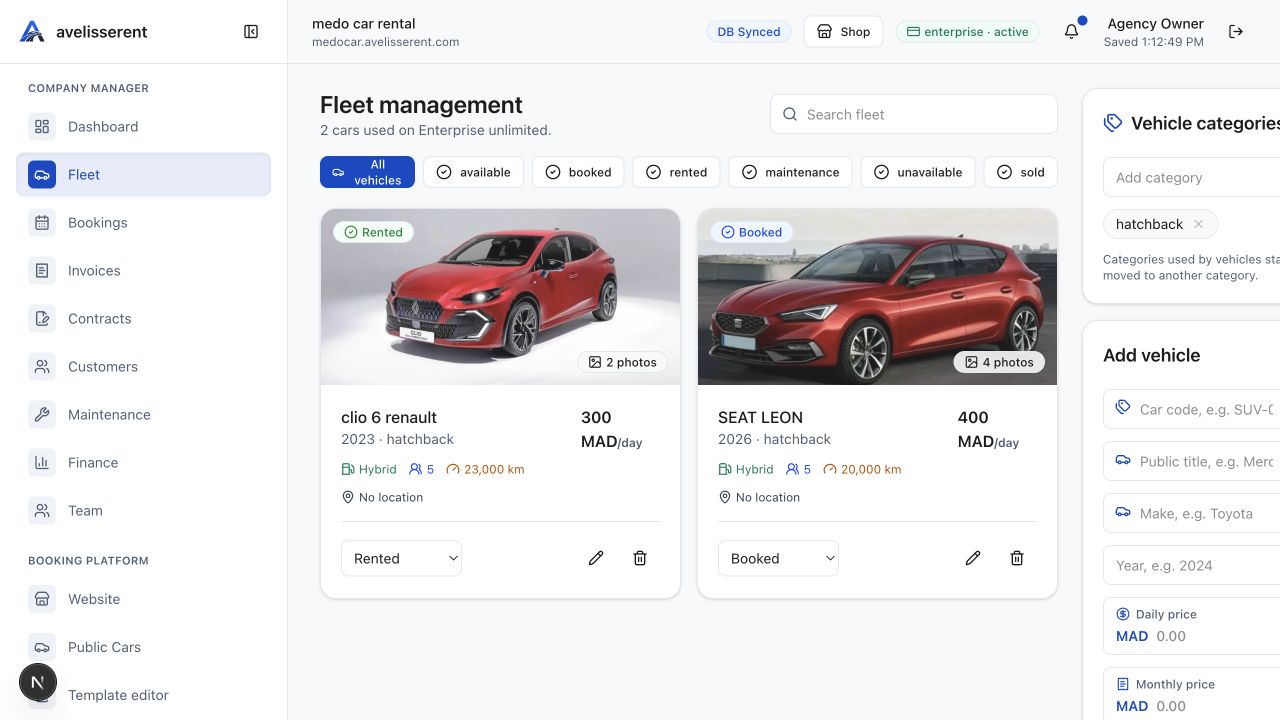
Required vehicle fields
The vehicle form requires Brand, Model, Year, Category, Daily price, Transmission, Fuel type, Seats, and Status.
Useful optional fields
- Car code, license plate, VIN, registration number, insurance number, insurance expiry date, and technical inspection date.
- Weekly price, monthly price, insurance price per day, service fee, deposit amount, cleaning fee, mileage limit, and extra mileage cost.
- Doors, colors, mileage, current location, drive type, minimum driver age, rental-day limits, similar-vehicle rule, unlimited mileage, features, included items, notes, and image URLs or uploads.
Status options
Fleet supports available, booked, rented, maintenance, unavailable, and sold. Use available only when the car can be assigned to bookings.
Publish carefully
Turn on the public listing only after the vehicle details and photos are ready. Then review Fleet Management for detailed guides on pricing, booking rules, statuses, and add-ons.
Was this article helpful?
Your feedback helps improve official AvelisseRent documentation.