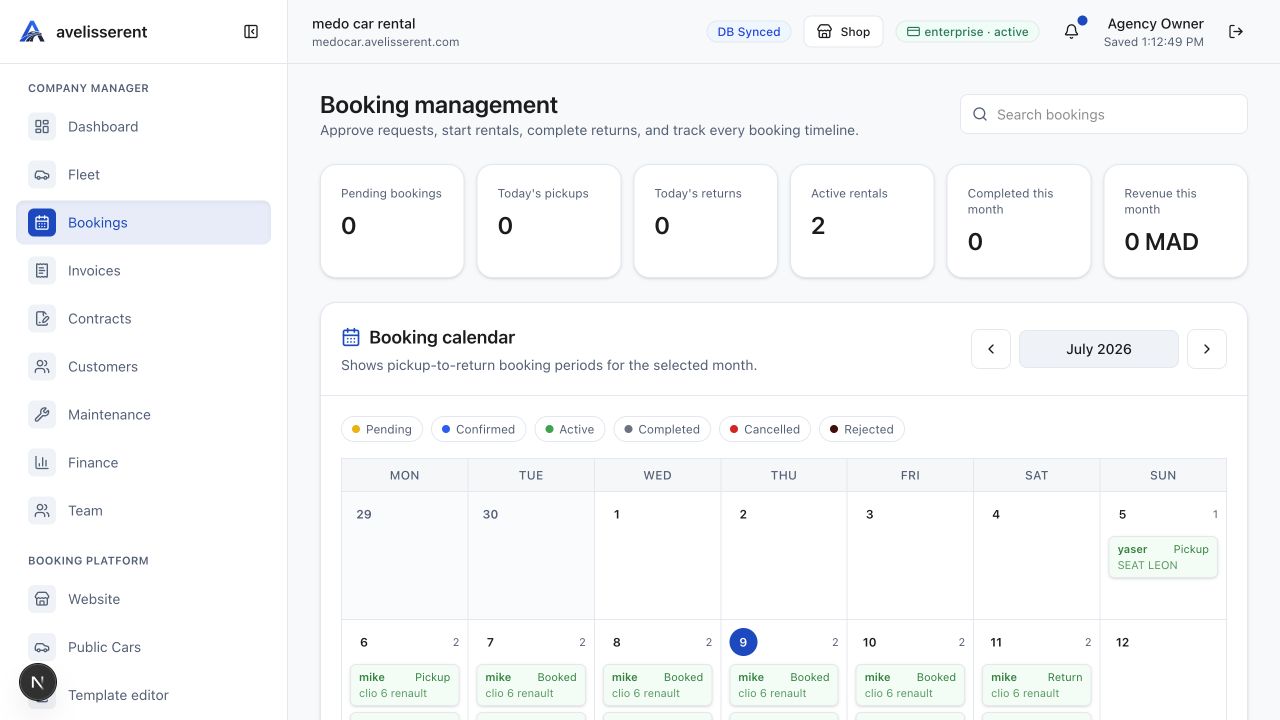
Browse Booking Management
Use New booking when the booking did not start from the public website. The form is designed for phone calls, walk-in customers, and agency partner reservations.
Required preparation
- Make sure the vehicle exists in Fleet and has a daily price.
- Configure pickup places in Website settings if the agency uses fixed pickup and return locations.
- Confirm the agency tax rate and VAT rate if pricing needs tax calculation.
Offline booking fields
- Vehicle: the car assigned to the reservation.
- Booking status: choose Pending booking or Confirmed booking.
- Customer name, Email, and Phone.
- Driver age and License number.
- Pickup address and Return address, or configured pickup-place dropdowns.
- Pickup, Return, pickup_time, and return_time.
- Notes for internal booking context.
Create the booking
- Open Bookings and stay on New booking.
- Select the vehicle.
- Choose Pending booking when the agency still needs to review the request, or Confirmed booking when the reservation is already approved.
- Enter customer, driver, location, date, time, and notes.
- Select Create booking.
Conflict handling
If the selected vehicle is unavailable for the chosen dates, AvelisseRent returns a conflict notice instead of silently accepting the booking.
Was this article helpful?
Your feedback helps improve official AvelisseRent documentation.